 ctrlhq
How ctrlhq keeps your MacBook running with the lid closed
Keep-awake apps stop working the moment you close a MacBook's lid. Here's why, and how ctrlhq's new screen-off and closed-lid modes get around it without leaving your Mac unable to sleep.
ctrlhq team · · 7 min read
You start a 40 GB download, a long render or an overnight build. Then you want to walk away. You'd rather not leave the screen glowing, and you'd really like to close the lid.
On a MacBook, that's where things go wrong. The screen dims and locks, or the lid closes and the whole Mac goes to sleep. The download stalls, the SSH session drops and the build pauses halfway.
ctrlhq has had Keep Awake for a while. This release adds two things on top of it:
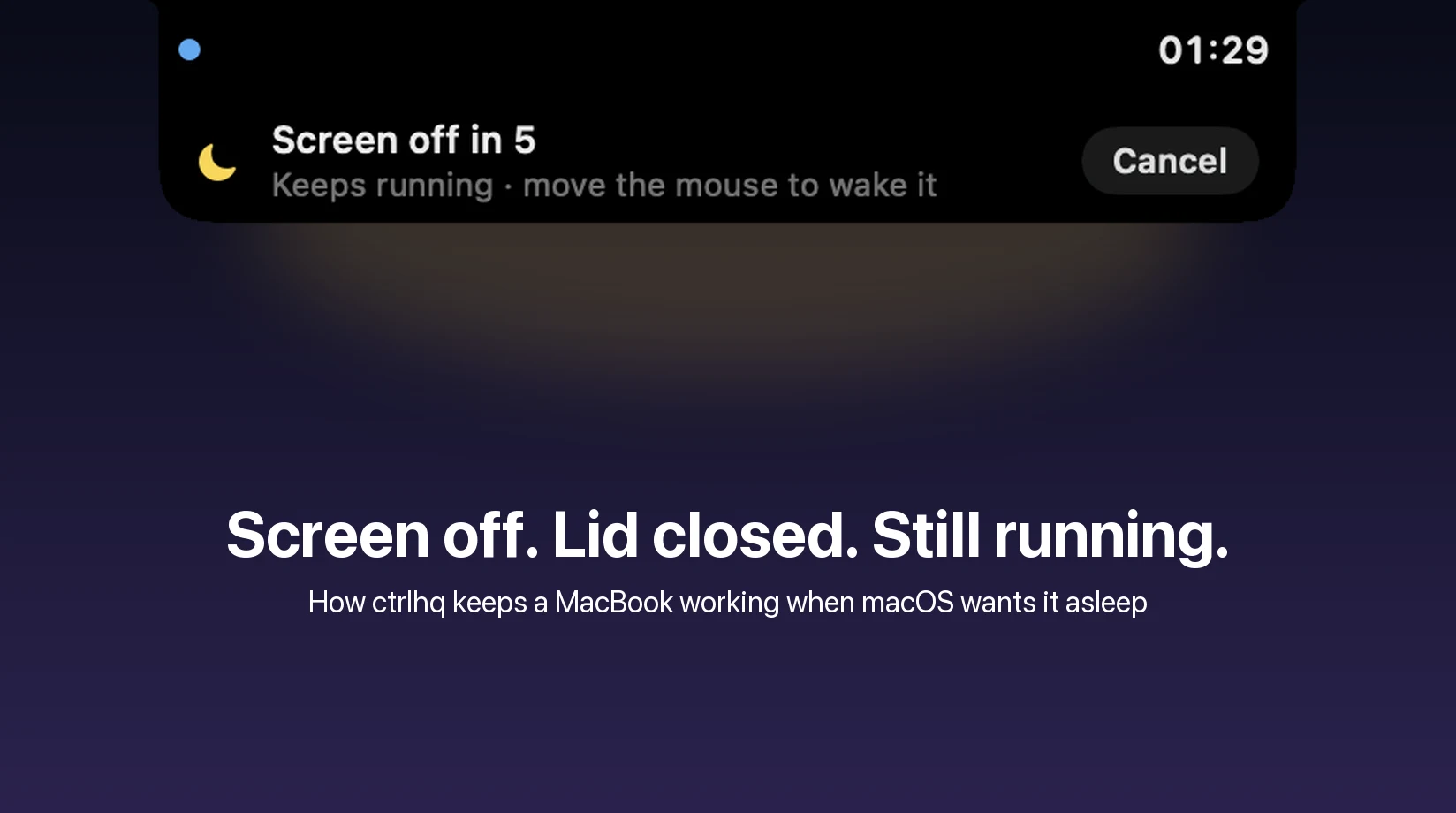
- Turn screen off, keep running. The notch counts down, the display goes dark, and your Mac keeps working. Move the mouse or press a key and it's back.
- Keep running with the lid closed (beta). Close the lid and the Mac keeps going, with no external monitor plugged in.
The first one is easy. The second one is not, and the reasons say a lot about how macOS handles sleep. Here's how both work.
Keep Awake, the easy part
macOS lets any app hold a power assertion. It's a note to the power manager that says "don't idle-sleep right now". caffeinate in Terminal does it, Amphetamine does it, and so does ctrlhq's Keep Awake. There are a few kinds, and the two that matter here are:
PreventUserIdleDisplaySleepkeeps the display on, and the Mac with it.PreventUserIdleSystemSleepkeeps the Mac awake but lets the display turn off.
Until now, Keep Awake held the first kind, because that's what you want during a talk or while reading a long document.
Screen off: swap the assertion, then sleep the display
To turn the screen off without stopping the Mac, ctrlhq does three things:
- Counts down in the notch. You probably clicked a menu item or pressed ⌃⌥⇧K. If the display went dark at that moment, your hand would still be on the trackpad and the smallest twitch would wake it. Five seconds gives you time to let go.
- Swaps the assertion from "keep the display on" to "keep the system on". The display may now sleep, but the Mac may not.
- Puts the display to sleep with
pmset displaysleepnow. That's the same thing that happens after your display-sleep timeout, just immediately.

Waking it is just macOS doing its normal thing: any mouse movement or key press turns the display back on. ctrlhq watches for the "screens did wake" notification, swaps back to the display assertion so the screen won't idle off again, and shows a small note in the notch saying Keep Awake is still on, with a button to let the Mac sleep.
If you've set your Mac to ask for a password after the screen turns off, it will ask when you wake it. That's on purpose: a dark screen is a good time for the Mac to be locked.
Why closing the lid is a different problem
Here's the part that surprises people. macOS ignores power assertions when the lid closes. No matter what an app asks for, closing a MacBook's lid puts it to sleep. The only built-in exception is clamshell mode, which needs an external display, a keyboard and mouse, and power, all plugged in.
That's a reasonable default. A closed laptop in a bag can't cool itself, and Apple doesn't want any app to be able to cook it. But it means that caffeinate and every app built on assertions stop at the lid.
There's exactly one switch that changes this, and it's in pmset:
sudo pmset -a disablesleep 1
With disablesleep set, the Mac doesn't sleep at all, lid closed included. The internal display still turns off when the lid closes, so nothing is lit inside a shut laptop. The catch is in the sudo: only root can flip this switch, and it stays flipped until something flips it back, through reboots too. Leave it on by accident and your Mac never sleeps again until you notice.
So the real problem isn't "how do we stop sleep". It's "how do we let an ordinary app flip a root-only switch, safely, and make sure it always gets flipped back".
The helper: one job, and it only listens to ctrlhq
ctrlhq installs a tiny launch daemon, a background process that runs as root. It's the ctrlhq app itself started with a --sleep-helper flag, registered through Apple's Service Management framework (SMAppService). That gives you a few things for free:
- You approve it once. The first time you turn on the lid-closed mode, macOS asks you to allow ctrlhq in System Settings › General › Login Items. There's no password prompt from ctrlhq, and you can switch the helper off in that same list at any time.
- It ships inside the app. There's no installer and nothing written to system folders. Turn the lid-closed mode off and ctrlhq removes the helper again.
- It isn't running most of the time. launchd starts it when ctrlhq asks for it, and it exits after a minute of not being needed.
The helper does one thing: it runs pmset -a disablesleep 1 or pmset -a disablesleep 0. It doesn't run commands you give it, it doesn't read files, and it doesn't accept arguments beyond "on" or "off".
It also checks who's asking. ctrlhq talks to the helper over XPC, and both ends attach a code-signing requirement to the connection: the other side must be the app with the identifier app.ctrlhq.mac, signed with our Apple developer certificate. Messages from anything else are dropped by macOS before they reach the helper. A script running as you can't ask it to switch sleep off.
That's the main difference from the other way to do this, which is a sudoers rule letting your user account run pmset disablesleep without a password. It works, and some open-source tools do it, but the rule covers any program running as you, not just one app. We'd rather the permission belong to one signed app.
Making sure sleep always comes back
Holding sleep off is the easy part. The hard part is the failure cases: ctrlhq crashing, being force-quit, hanging, an update replacing it mid-session, or the Mac losing power. In every one of those, sleep has to come back on its own. The helper has four safety nets for that:
- The connection. The helper holds sleep off only for the connection that asked. When ctrlhq quits or crashes, macOS tears down that connection, and the helper flips sleep back on straight away.
- The lease. Each request lasts two minutes, and ctrlhq renews it every 30 seconds. If ctrlhq hangs without crashing, the renewals stop and the lease runs out. The connection is still open, but the helper lets go anyway.
- Shutdown. When launchd stops the helper (logout, shutdown, the helper being removed), it catches the signal and turns sleep back on before it exits.
- Startup. The helper also runs once at boot and resets
disablesleepto 0. If the Mac lost power with the lid-closed mode on, the setting can't survive the restart.
The result is that sleep stays off for exactly as long as a healthy ctrlhq keeps asking, and not a second longer.
Battery and heat
Even with all of that, "never sleep with the lid closed" isn't something you want running until your battery is flat. While the lid-closed mode is on, ctrlhq checks every 30 seconds:
- On battery, it stands down at 10% by default. You can raise that, or pick Only when plugged in.
- When macOS reports critical heat, it stands down too.
Standing down means letting go of the disablesleep switch. If the lid is closed at that point, the Mac falls asleep the normal way. Keep Awake stays on for when you open it again, and the notch tells you why it stopped. The heat check is a backstop, not permission: a closed MacBook doing heavy work in a bag will still get hotter than it should, so keep it somewhere it can breathe.
Why it's in beta
Turning the screen off isn't in beta. It uses nothing more than the power manager's own assertions and pmset displaysleepnow, and it behaves like normal display sleep.
The lid-closed mode is in beta because we want more hours on it across more MacBooks: different macOS versions, different external-display setups, laptops on and off power. The safety nets are what we'd want to rely on ourselves, but we'd still like more people using it before we take the label off.
Try it
Update ctrlhq, then open the Keep Awake menu beside the notch:
- Turn screen off, keep running: or press ⌃⌥⇧K, or say "turn off the screen" with a voice command.
- Keep running with the lid closed (beta): approve the helper in Login Items the first time, then close the lid.
The settings for both (countdown length, battery floor, heat cutoff) are in Settings › General › Keep Awake. There's more on the Keep Awake and closed-lid mode pages.
- mac
- how it works