 ctrlhq
New · Chrome, Arc, Brave and Edge
Your notch, now in your browser.
Park a window of tabs on your notch and bring them back in a click. Screenshot a whole page. Clip anything with a right-click. Block the feed while you focus. The free Chrome extension for ctrlhq on Mac, and nothing leaves your computer.
Free with ctrlhq · Needs the Mac app · No account, no cloud
- Private by designNo server, no account. It only talks to the app on your Mac.
- Works offlineEverything runs on your computer, even without a connection.
- Never reads passwordsPassword fields are skipped, even when you copy from one.
Tab parking
Too many tabs? Park them on the notch.
Press Alt+Shift+P and the other tabs in your window close into one card on your Shelf. Click it later and they come back in a new window, loading only as you visit them, so even 30 tabs return without a stall.
- Park a window, the tabs to the right, or just one
- Pinned tabs, music and half-written forms always stay open
- Rename a set, or pin it to reopen every morning
- Comes back in the Chrome profile it came from
Clip to your notch
Right-click it. It's on your notch.
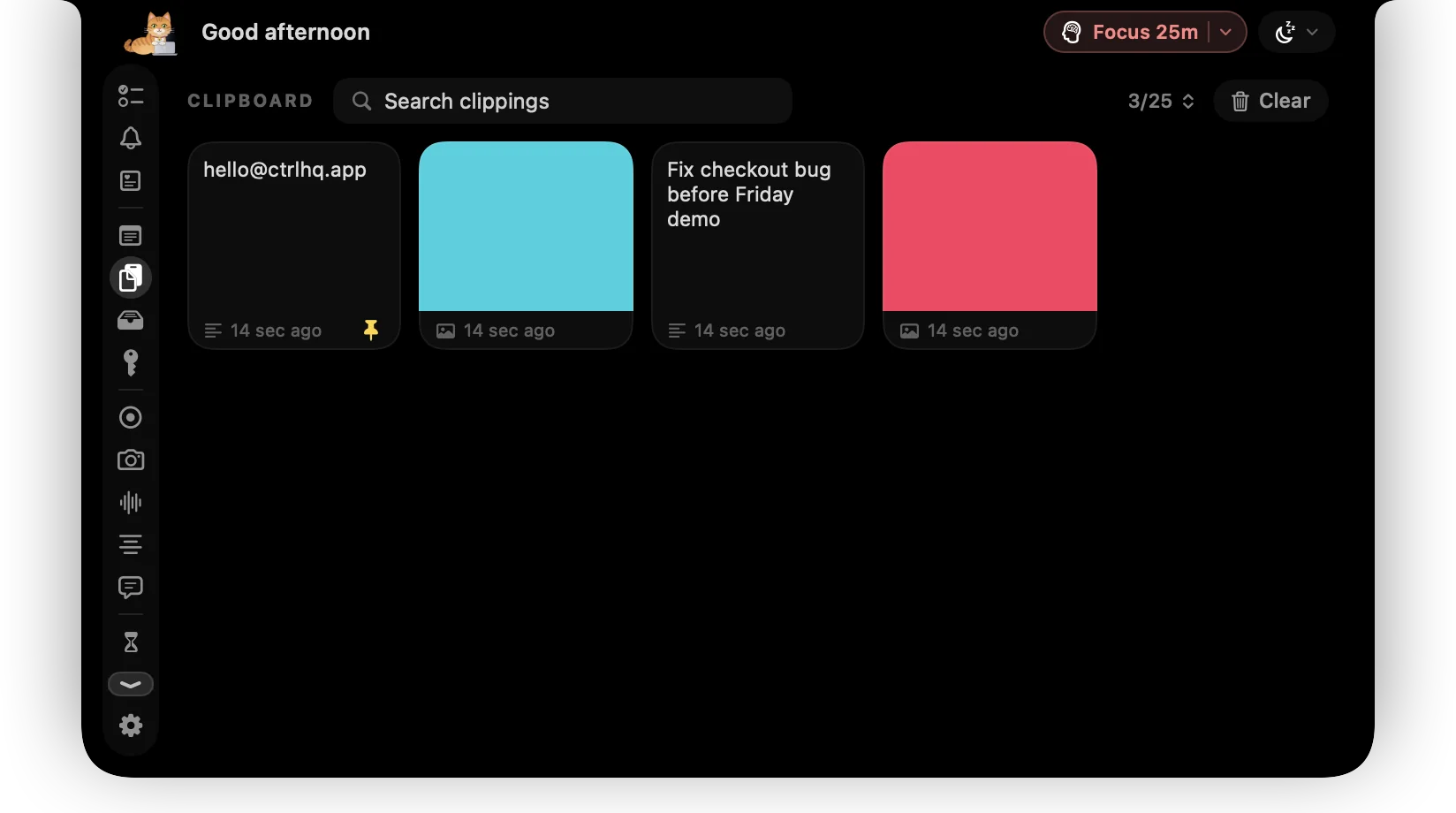
Send any image, link or selected text to the Shelf. Save a selection to the Scratchpad with the page title and a link back, so you always know where a note came from.
- Send to Shelf, then drag it into any app or convert and crop it
- Save to Scratchpad with the source page attached
- The clipboard remembers the page each copy came from
- Search your clipboard by site
Screenshots
Tab, region or the whole page. Straight into the editor.
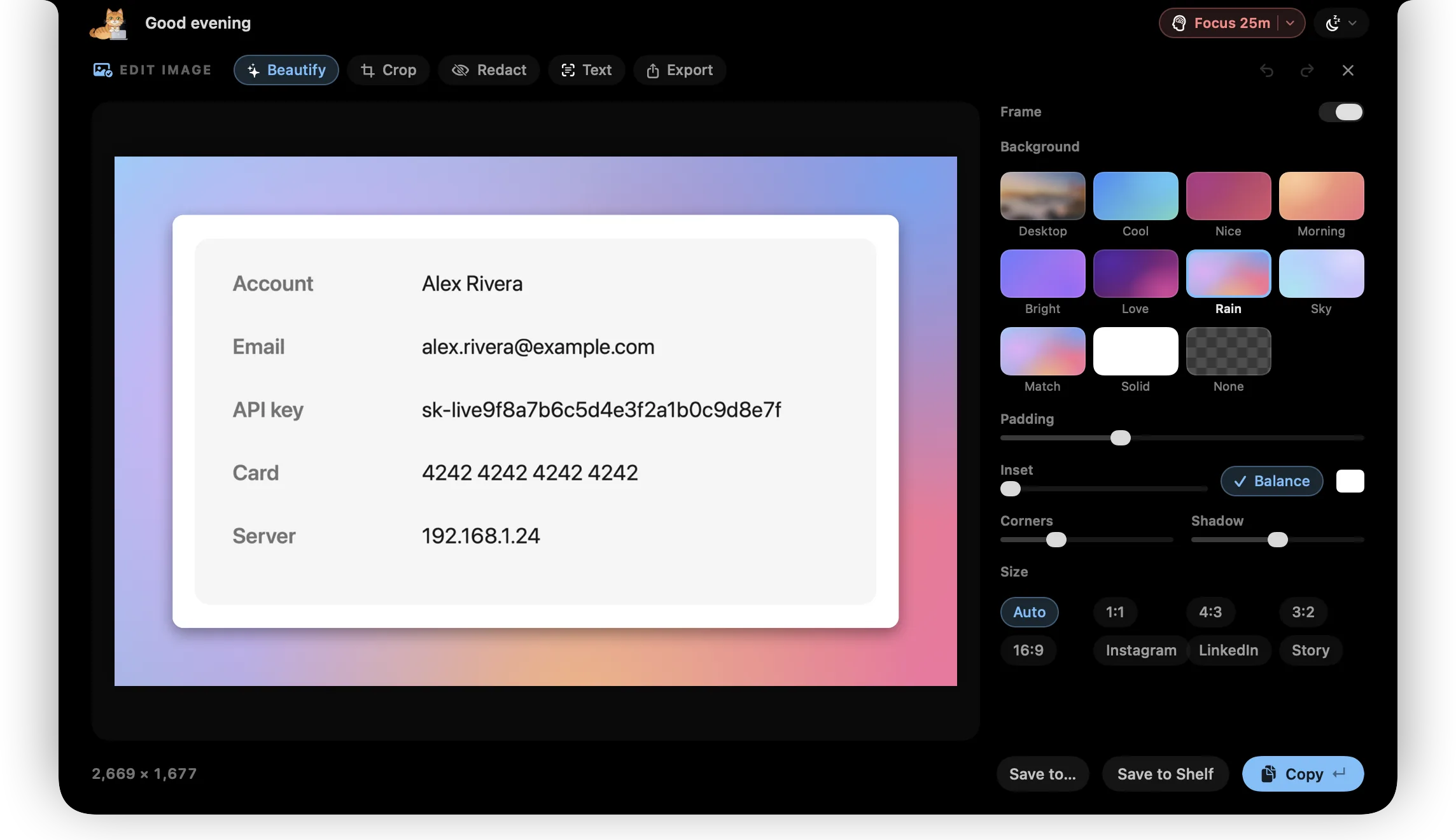
Press Alt+Shift+S and drag to capture part of a page, grab the visible tab, or press Alt+Shift+F to capture the whole page as it scrolls. It opens in ctrlhq's screenshot editor, ready to frame, crop, redact or pull the text out.
- Full-page captures stitched into one image, sticky headers shown once
- Works in Gmail, Notion and other apps that scroll a panel
- Captures exactly what you see, nothing uploaded
- Redact emails and numbers in one click
Focus mode
Block the feed. Keep the tab.
Block social media, video, news or shopping, or your own list, while a focus session runs or for 25, 45 or 90 minutes. Blocked sites show a quiet notice instead, with the time left.
- Starts by itself with a focus session, or on demand
- Presets for social, video, news and shopping, plus your own sites
- Strict mode removes the way out until the timer ends
- Always expires on its own, so you're never locked out
Time on the notch
See the minutes as they add up.
Set a daily limit for any site. Once you pass it, the notch counts up while you stay, so a quick look doesn't quietly become an hour.
- A daily limit per site, you choose which
- Only the site's name is kept, never the page
- Totals show up in Settings, right next to your limits
Set up
Connected in under a minute
- 1
Install ctrlhq for Mac
Open it once. That's what lets your browser find it.
- 2
Add the extension
From the Chrome Web Store, in Chrome, Arc, Brave or Edge.
- 3
Allow it from the notch
ctrlhq asks once. Choose Allow, and everything above switches on.
Nothing leaves your Mac
The extension has no server. It talks only to the ctrlhq app on your computer, through a private connection no website or other app can use. It never reads password fields. Read exactly what it sees on the privacy page.
Questions
What does the ctrlhq Chrome extension do?
It connects Chrome to the ctrlhq app on your Mac. You can park a window of tabs on your notch and bring them back later, right-click to send images, links and text to your Shelf or Scratchpad, keep a clipboard that remembers which page each copy came from, take tab, region and full-page screenshots, use a focus mode that blocks distracting sites, and see a notch counter that shows how long you have been on a site.
Is the extension free?
Yes. The extension is free, but it needs the ctrlhq app for Mac, which is a one-time purchase. All of the features run in the app; the extension is how they reach your browser.
Which browsers does it work in?
Chrome, Arc, Brave, Microsoft Edge, Vivaldi and other Chromium browsers on macOS. Safari and Firefox are not supported yet.
Does it fill passwords?
No. Chrome's own password manager already does that well, and it syncs your logins to your phone and other computers. ctrlhq's password vault lives on your Mac and works from the power bar in any app.
What is tab parking?
Press Alt+Shift+P, or Park in the extension, and the other tabs in your window close into one card on your Shelf, named after the site they share. Click the card and they open again in a new window, each one loading when you visit it. Pin a card to keep it as a set you reopen every day. Pinned tabs, tabs playing sound and tabs with unsent typing are never parked.
Can it screenshot a whole page?
Yes. Choose Whole page, or press Alt+Shift+F, and the extension scrolls the page and stitches it into one image, with sticky headers shown once instead of on every screen. It opens in ctrlhq's editor, ready to crop, redact or share. It also works in apps that scroll a panel instead of the page, like Gmail and Notion.
Can I block social media while I work?
Yes. Focus mode blocks social media, video, news and shopping sites, or a list you write yourself. It switches on automatically during a focus session, or you start it for 25, 45 or 90 minutes. Strict mode removes the "give me 5 minutes" button.
What does the extension send, and to whom?
Nothing leaves your Mac. The extension has no server. It talks only to the ctrlhq app, over a private connection on your computer. For site timers it reports just the site's name, such as youtube.com, never the page address or contents.
Do I need to install ctrlhq first?
Yes, and the extension checks. If the app is missing, the extension says so and links to the download. Once the app is open, the notch asks you to allow the browser, and you're connected.
Put the notch to work on the web.
More from the notch: Clipboard · Shelf · Scratchpad · Screenshot editor · Focus timer