 ctrlhq
Screenshot editor
Screenshots worth sharing, in one hover.
Hover a screenshot in your clipboard and click Edit: a backdrop and shadow, a crop, emails and keys blacked out, or just the text you need. Then paste.
One-time purchase, lifetime updates
Already bought? Download
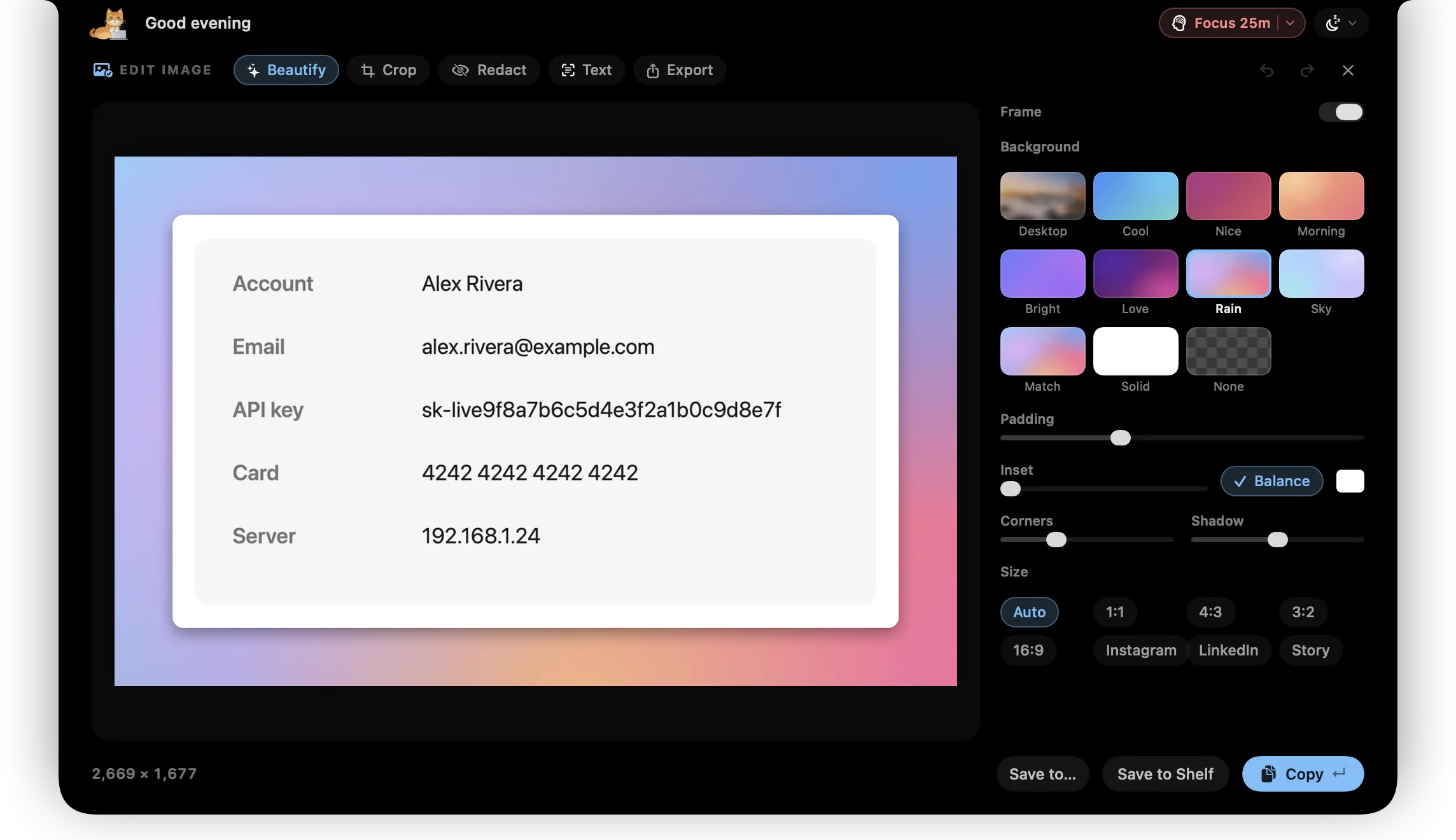
A raw screenshot is rarely ready to send. It needs a crop, a nicer frame for a tweet or a deck, or an email address and an API key hidden before it goes in a public channel.
Take a screenshot to the clipboard as usual (⌘⌃⇧4). In ctrlhq's clipboard, hover it and click Edit: the notch opens wide with everything in one place. Press ↵ and the edited image goes back on the clipboard, ready to paste, in place of the original.
What you get
Beautiful backgrounds
Soft gradients, your own wallpaper blurred, a gradient made from the screenshot's colours, a solid colour or transparent. Padding, rounded corners and a shadow, all on sliders.
Balanced automatically
ctrlhq finds the screenshot's own background colour and uses it for the inset, then trims uneven margins so the content sits centred.
Sized for where it's going
Square, 4:3, 16:9, Instagram, LinkedIn or a 9:16 story, with the screenshot centred on the canvas.
Redacts for you
Emails, API keys and tokens, card numbers, IP addresses and phone numbers are found on your Mac and marked. Hide them all in one click, or drag a box over anything else.
Hidden means gone
Redactions are filled solid black in the saved pixels. Nothing underneath is kept, and redacted text can't be copied back out.
Copy the text
Every line in the image is readable: click a line, drag across several, or copy it all. Read on-device by macOS's Vision engine.
Crop and export
Crop with aspect presets, then save as PNG, JPEG, WebP or HEIC at full or half size, with the file size shown before you save.
Copy, save or drag
↵ copies and closes. Save to Desktop, Downloads, a pinned folder or the shelf, or drag the result straight into Slack, Mail or Figma.
How it works
- 1Take a screenshot to the clipboard (⌘⌃⇧4).
- 2Open Clipboard in the notch, hover the screenshot and click Edit.
- 3Frame it, crop it, redact it or copy its text. Press ↵ to copy, or save it anywhere.
Questions
Do I need a separate screenshot shortcut?
No. Use macOS's own: ⌘⌃⇧4 copies a selection to the clipboard, and ctrlhq picks it up. Any image you copy can be edited the same way, and images on the shelf have Edit in their right-click menu.
Is my screenshot uploaded anywhere?
No. Text recognition, redaction and rendering all run on your Mac.
Will redaction catch everything?
It catches emails, API keys and tokens, card numbers, IP addresses and phone numbers it can read, and shows how many it found. Very small or faint text can be missed, so take a look before you share. You can always drag a box over anything by hand.
What happens to the original?
Copying the edit puts it in the original's place in your clipboard history, so an unredacted copy isn't left lying around. Saving writes a new file and never touches anything else.
Does it remember my style?
Yes. The background, padding, corners, shadow and size you used last are used next time.
Also in the notch
All featuresClipboard history
Searchable clipboard history for text and images. ⌃⌥V opens it in any app.
Learn moreImage converter
Convert to WebP, AVIF, HEIC, JPEG, PNG or TIFF and watch the file size change as you move the slider.
Learn moreFile shelf
Drop files on the notch to hold them. Move them to a pinned folder, drag them out, or AirDrop them in one move.
Learn more

Screenshot editor, and everything else.
Every feature is in one app, for one price: $24.99₹1,999 once, no subscription.
One-time purchase, lifetime updates
Already bought? Download
macOS 26 Tahoe or later · Apple silicon & Intel