 ctrlhq
New · Chrome, Arc, Brave and Edge
Your notch, now in your browser.
Autofill and save logins with Touch ID. Block the feed while you focus. Clip anything to your notch with a right-click. The free Chrome extension for ctrlhq on Mac, and nothing leaves your computer.
Free with ctrlhq · Needs the Mac app · No account, no cloud
- Private by designNo server, no account. It only talks to the app on your Mac.
- Works offlineEverything runs on your computer, even without a connection.
- Touch ID to fillYour vault stays sealed until you say so.
Password autofill
Sign in with a click. Save with another.
Click the key in any password field and your login is typed in after Touch ID. Sign in somewhere new, or change a password, and the notch asks if you want to save or update it, but only once the login actually worked.
- Fills username and password, including two-step sign-ins
- Suggests a strong password when you sign up
- Asks before saving or updating. Never on its own
- AES-256 vault, key in your Keychain, no cloud sync
Clip to your notch
Right-click it. It's on your notch.
Send any image, link or selected text to the Shelf. Save a selection to the Scratchpad with the page title and a link back, so you always know where a note came from.
- Send to Shelf, then drag it into any app or convert and crop it
- Save to Scratchpad with the source page attached
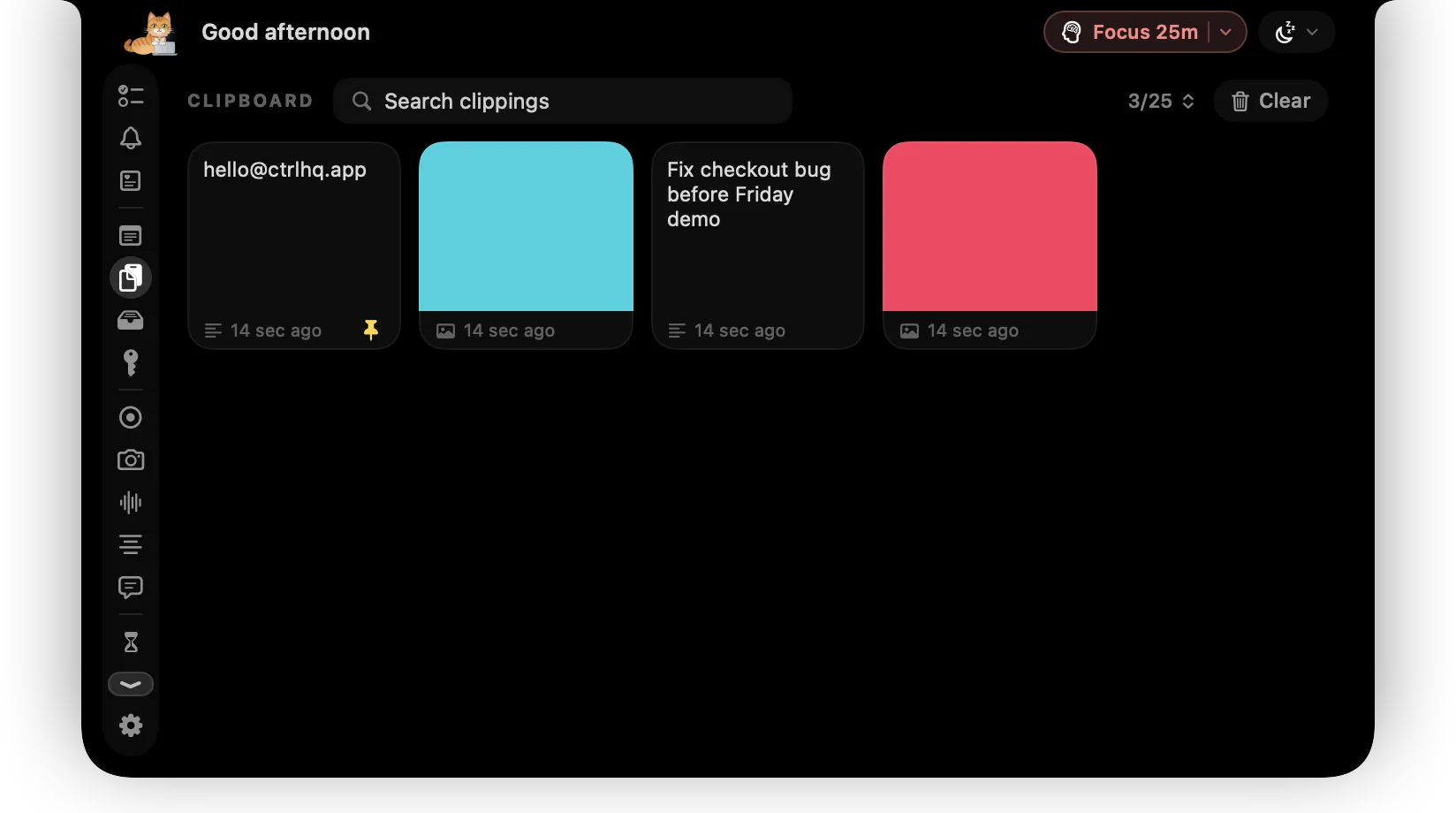
- The clipboard remembers the page each copy came from
- Search your clipboard by site
Screenshots
Tab or region. Straight into the editor.
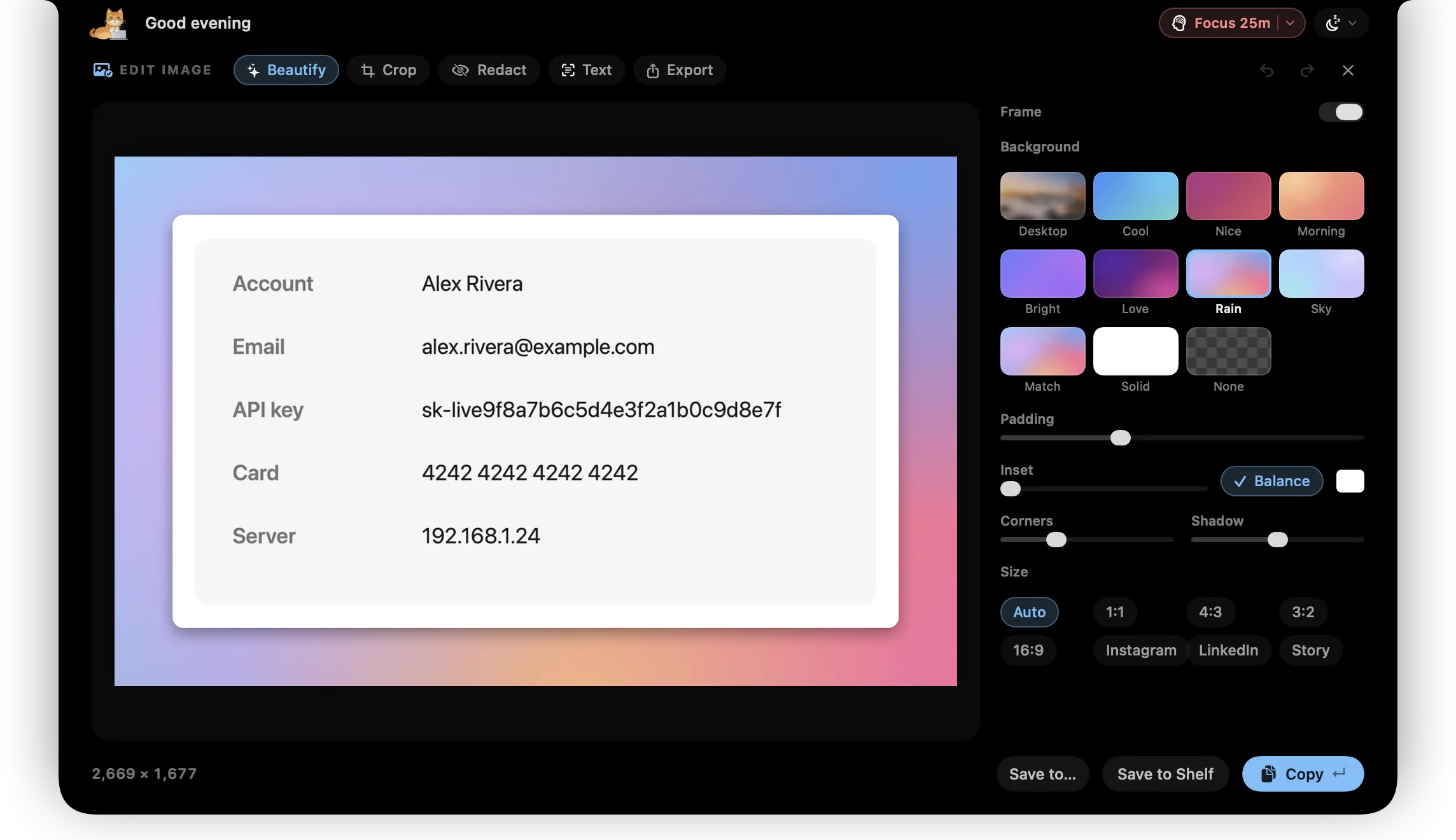
Press Alt+Shift+S and drag to capture part of a page, or grab the whole visible tab. It opens in ctrlhq's screenshot editor, ready to frame, crop, redact or pull the text out.
- Shortcuts you can change in Chrome
- Captures exactly what you see, nothing uploaded
- Redact emails and numbers in one click
Focus mode
Block the feed. Keep the tab.
Block social media, video, news or shopping, or your own list, while a focus session runs or for 25, 45 or 90 minutes. Blocked sites show a quiet notice instead, with the time left.
- Starts by itself with a focus session, or on demand
- Presets for social, video, news and shopping, plus your own sites
- Strict mode removes the way out until the timer ends
- Always expires on its own, so you're never locked out
Time on the notch
See the minutes as they add up.
Set a daily limit for any site. Once you pass it, the notch counts up while you stay, so a quick look doesn't quietly become an hour.
- A daily limit per site, you choose which
- Only the site's name is kept, never the page
- Totals show up in Settings, right next to your limits
Set up
Connected in under a minute
- 1
Install ctrlhq for Mac
Open it once. That's what lets your browser find it.
- 2
Add the extension
From the Chrome Web Store, in Chrome, Arc, Brave or Edge.
- 3
Allow it from the notch
ctrlhq asks once. Choose Allow, and everything above switches on.
Nothing leaves your Mac
The extension has no server. It talks only to the ctrlhq app on your computer, through a private connection no website or other app can use. Passwords stay in your encrypted vault, and the extension gets a login only when you choose to fill it. Read exactly what it sees on the privacy page.
Questions
What does the ctrlhq Chrome extension do?
It connects Chrome to the ctrlhq app on your Mac. You get login autofill and saving with Touch ID, right-click to send images, links and text to your Shelf or Scratchpad, a clipboard that remembers which page each copy came from, tab and region screenshots, a focus mode that blocks distracting sites, and a notch counter that shows how long you have been on a site.
Is the extension free?
Yes. The extension is free, but it needs the ctrlhq app for Mac, which is a one-time purchase. All of the features run in the app; the extension is how they reach your browser.
Which browsers does it work in?
Chrome, Arc, Brave, Microsoft Edge, Vivaldi and other Chromium browsers on macOS. Safari and Firefox are not supported yet.
Is it a password manager?
ctrlhq includes an encrypted password vault, and the extension is how you use it on the web. Logins are sealed with AES-256, the key stays in your Mac's Keychain, and filling a login needs Touch ID or your Mac password. Nothing is synced to a cloud.
Does ctrlhq save passwords without asking?
No. After you sign in somewhere new, or change a password, the notch asks whether to save or update it, and only once the login actually worked. You can choose Never here for any site.
Can I block social media while I work?
Yes. Focus mode blocks social media, video, news and shopping sites, or a list you write yourself. It switches on automatically during a focus session, or you start it for 25, 45 or 90 minutes. Strict mode removes the "give me 5 minutes" button.
What does the extension send, and to whom?
Nothing leaves your Mac. The extension has no server. It talks only to the ctrlhq app, over a private connection on your computer. For site timers it reports just the site's name, such as youtube.com, never the page address or contents.
Do I need to install ctrlhq first?
Yes, and the extension checks. If the app is missing, the extension says so and links to the download. Once the app is open, the notch asks you to allow the browser, and you're connected.
Put the notch to work on the web.
More from the notch: Clipboard · Shelf · Scratchpad · Screenshot editor · Focus timer