 ctrlhq
Honest time tracking without a subscription
Timers are easy. Keeping the record honest when you walk away, switch tasks or forget to hit stop is the hard part. Here's how ctrlhq handles it.
ctrlhq team · · 1 min read
If you bill by the hour, a time tracker is only as good as its worst day. One forgotten timer over lunch and the invoice is wrong, and every entry after it looks suspect.
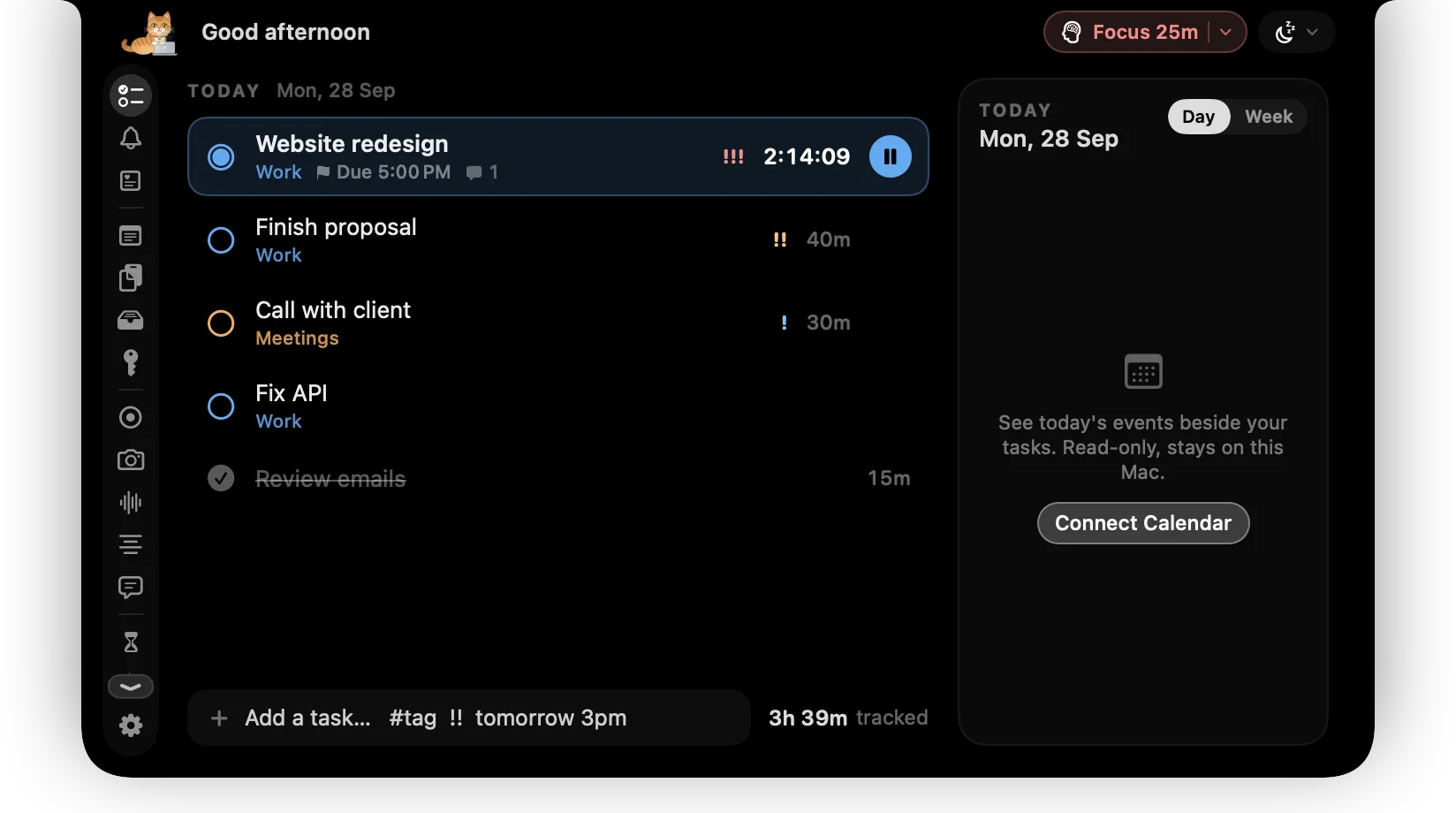
One click to start, and it follows you
Start a timer by clicking a task in the notch, or with ⌥⌘T from any app. The running time stays in the notch all day, so you can't forget it's on. When you switch tasks, the timer switches with you. There's nothing to stop and restart.
When you step away
ctrlhq notices when you leave the Mac. When you come back it asks what to do with the gap:
- Keep it, if you were on a call or thinking at the whiteboard
- Remove it, if you were at lunch
- Remove it and stop the timer, if you're done for the day
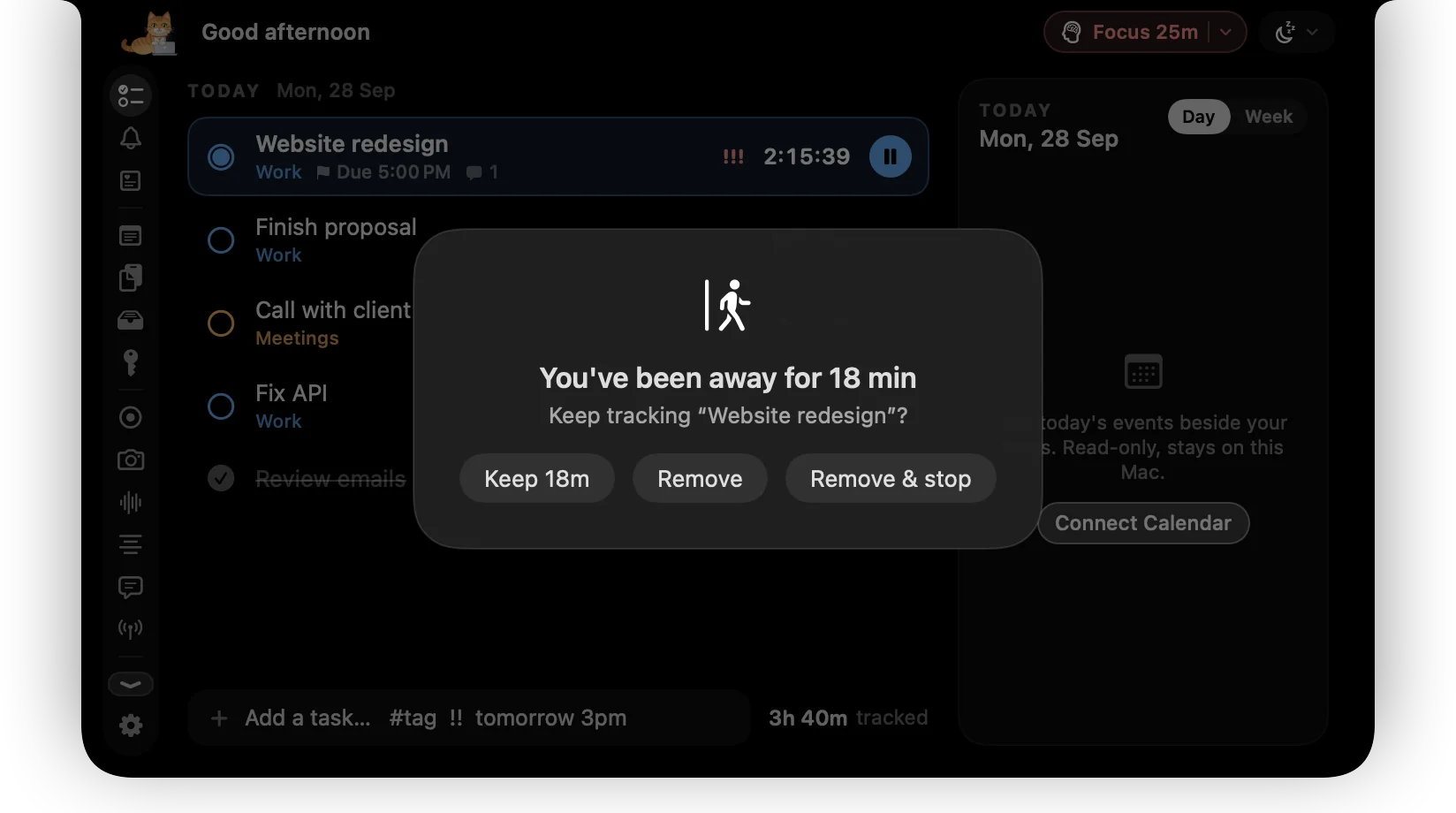
If you'd rather not be asked, set it to stop the timer on its own after a chosen time away.
Reviewing the day
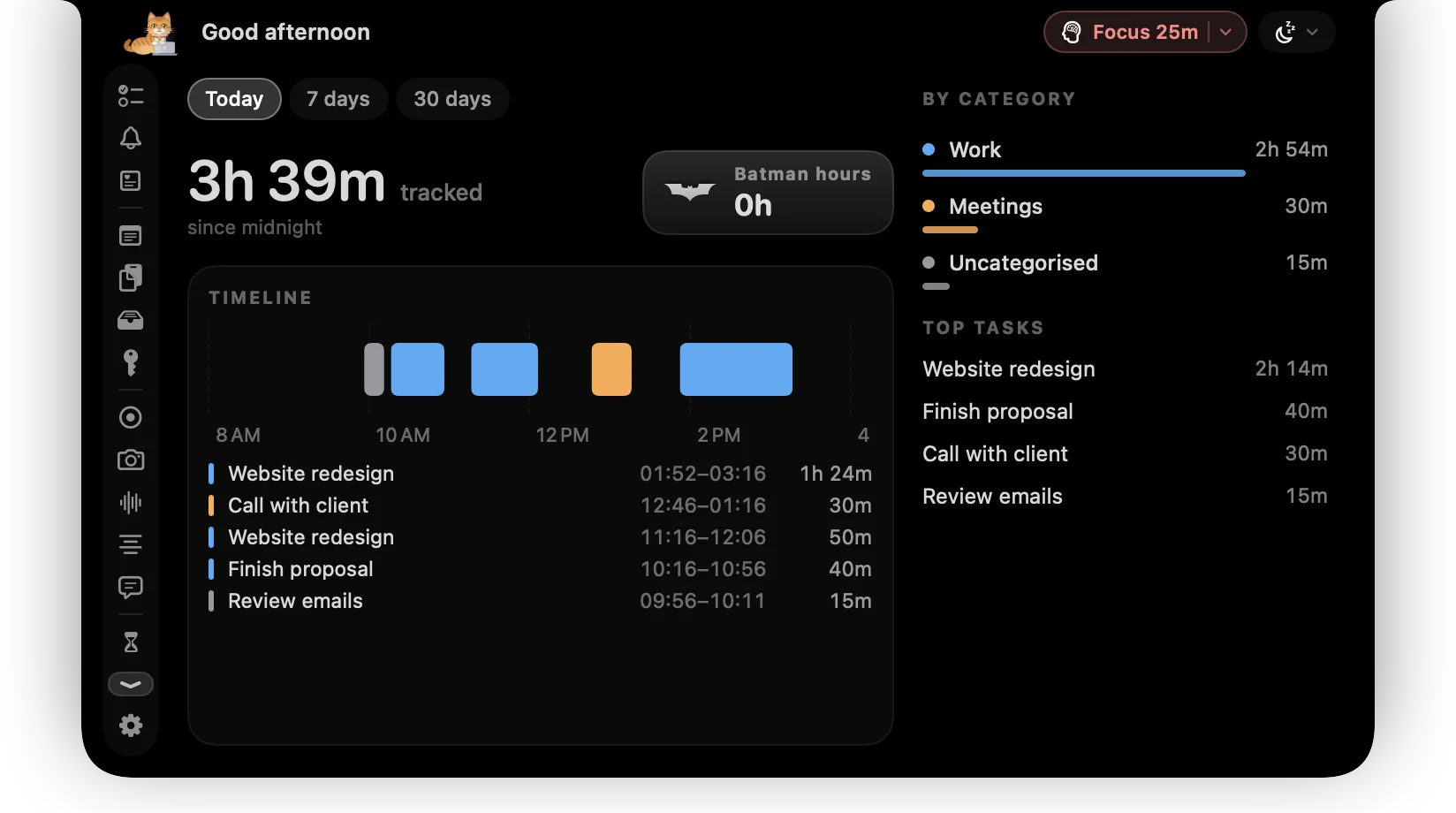
The time report shows tracked time by category and task for today, the last 7 days or the last 30, plus a timeline of the day. Anything worked between 1am and 5am is counted separately as "Batman hours", because some weeks you want to know.
Getting it out
Export everything as JSON or CSV for invoices, timesheets or your own spreadsheets. The data never leaves your Mac unless you export it, and there's no monthly fee for keeping it.
- time tracking
- freelancing