 ctrlhq
Power tool
One shortcut for tasks, files, sums, passwords and your clipboard.
⌘⇧Space from any app. Type a task, a sum, a file name, a reminder or an app, press Return, and you're back where you were.
14-day money-back guaranteeAlready bought? Download
Shortcut ⌘⇧Space
Ideas and to-dos show up at the worst moments: mid-email, mid-meeting, mid-thought. Switching to another app is enough friction that most of them get lost.
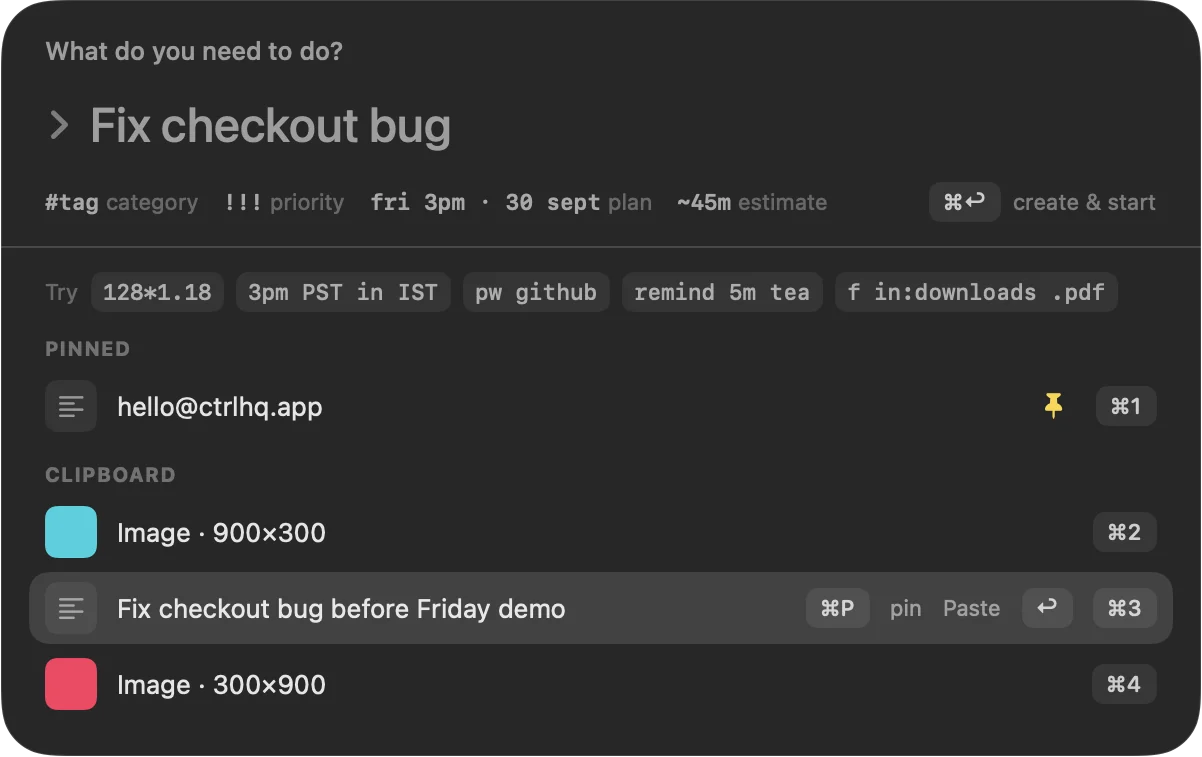
ctrlhq's power tool opens a small panel over whatever you're doing. Type and it works out what you meant: a task, a file, a sum, a time zone, a reminder, a password or an app. Press Return and focus goes straight back to the app you were in.
Try it
What do you need to do?
›
What you get
Tasks as you type
#tag sets the category, !!! the priority, and dates in plain words plan it: tomorrow 3pm, fri, 30th sept, in 3 days. ~45m adds an estimate. ⌘Return creates it and starts the timer.
Find any file
Describe it the way you'd say it: "images on desktop", "pdfs from last week", "videos over 500mb", "docs containing invoice". No prefix needed. Prefer filters? f in:downloads .pdf, kind:image, modified:week and >10mb still work, and f ? shows every tip. Return opens it; ⌘Return shows it in Finder.
Instant answers
Sums with percentages (128 + 18%), unit conversions and time zones (3pm PST in IST). Return copies the answer.
Reminders
"remind 20m stretch" or "remind at 3pm standup" sets one without opening anything.
Passwords
"pw github" unlocks with Touch ID and types the login into the app you were in.
Clipboard at hand
Your pinned and recent clippings sit right under the field. ⌘1 to ⌘9 paste one straight away.
Apps and commands
Open any app by name, or type > for commands like starting a screen recording or transcribing a meeting.
Never steals focus
The panel doesn't activate ctrlhq, so your cursor and selection stay where they were.
Questions
Can I change the shortcut?
Yes. Every shortcut can be rebound in Settings.
Does a new task start a timer?
Only if you want it to. Return adds it to your list; ⌘Return adds it and starts tracking.
Is my clipboard or password data sent anywhere?
No. Clipboard history and passwords stay on your Mac, and passwords stay encrypted until you unlock them with Touch ID.
How do I search for files?
Type what you're after in plain English, like "screenshots on desktop today" or "pdfs from last week", and matching files show up first. Start with f to search files only, and type f ? for a guide you can click through.
Does file search index my whole disk?
No. It asks Spotlight, which macOS already keeps up to date, so ctrlhq never crawls your disk or keeps a second index. For folders Spotlight skips, it does a short, capped search of just that folder.
Also in the notch
All featuresTime tracking
Your tasks and the running timer live in the notch, so you never forget to start or stop.
Learn moreClipboard history
Searchable clipboard history for text and images. ⌘⇧V opens it in any app.
Learn moreKeyboard shortcuts
Global shortcuts for everything you do often. They work in any app and can all be rebound.
Learn more

Power tool, and everything else.
Every feature is in one app, for one price: $19 once, no subscription, and a full refund within 14 days if it isn't for you.
14-day money-back guaranteeAlready bought? Download
macOS 26 Tahoe or later · Apple silicon & Intel