 ctrlhq
Voice commands
Say it, and it's done.
Hold fn + ⌃ and talk: "remind me at 3 to call Sam", "add milk to my list", "pause the music". It runs instead of being typed, on your Mac.
One-time purchase, lifetime updates
Already bought? Download
Shortcut fn⌃
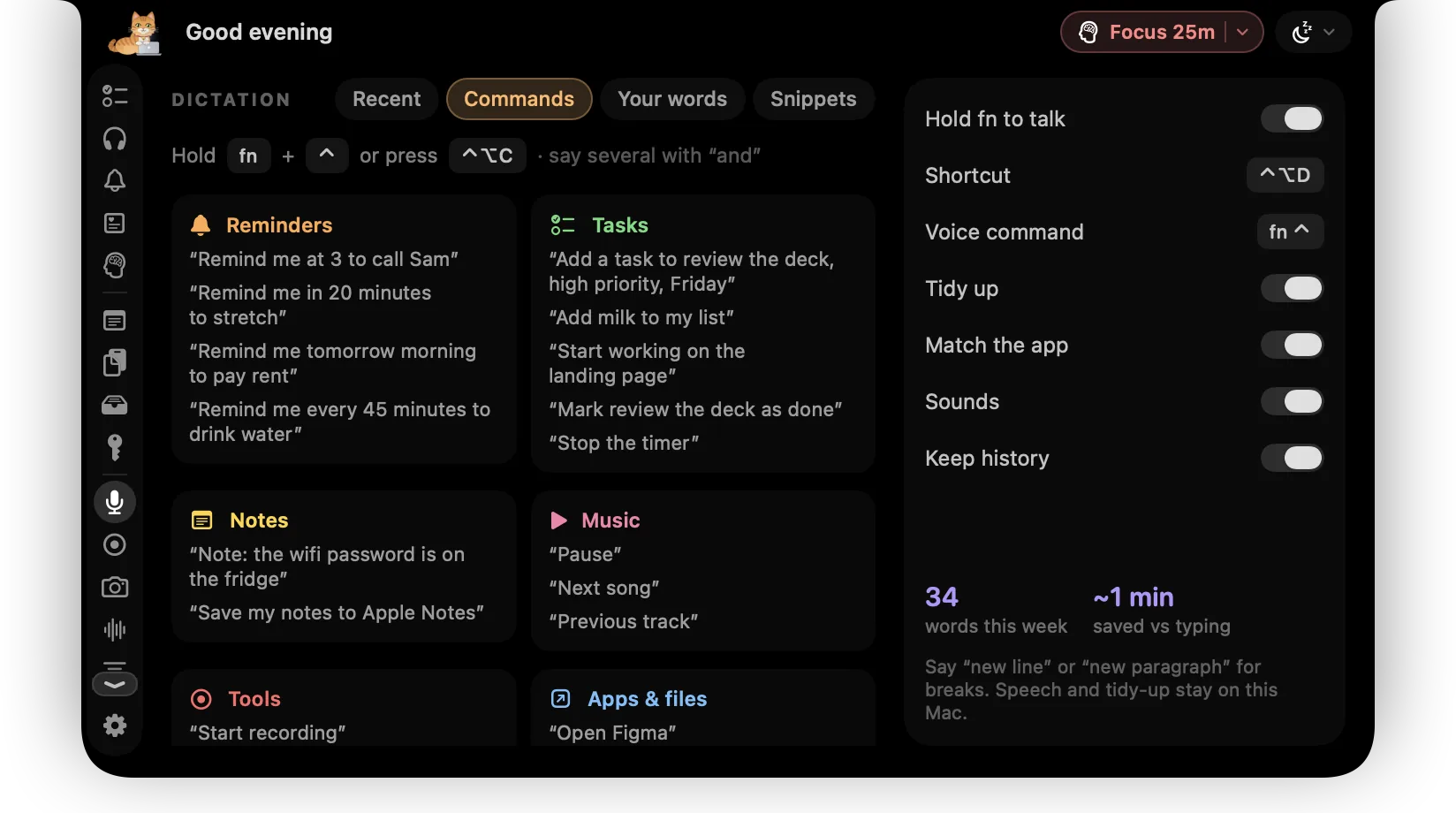
Some things you say aren't meant to be typed. "Remind me at 3 to call Sam" should become a reminder, not a sentence in your Slack draft.
Hold fn and ⌃ together and ctrlhq listens for a command instead of dictation. As you talk, the notch shows what it understood: a reminder at 3:00 PM, a task for Friday, the song it's about to pause. Let go and it's done, with Undo right there if it heard you wrong. Speech is turned into text and understood on your Mac. Nothing is uploaded.
Try it
What you get
Reminders in one breath
"Remind me in 20 minutes to stretch", "tomorrow morning to pay rent", "every 45 minutes to drink water", "every weekday at 6pm to log hours". Times are read the way you mean them: "at 3" is 3pm.
Tasks with the details
"Add a task to review the deck, high priority, Friday, about an hour" sets the day, priority and estimate. "Start working on the landing page" starts its timer; "mark the deck as done" ticks it off.
See it before it runs
What you've said turns into chips under the notch as you talk, so a misheard time is obvious before you let go.
Undo, right there
Anything a command creates comes with an Undo button in the notch. One press takes it all back.
Several at once
"Remind me at 3 to call Sam and add milk to my list" does both. "Buy bread and milk" stays one task.
Notes, music and tools
"Note: the wifi password is on the fridge" goes to the scratchpad. "Pause", "next song", "start recording", "transcribe this meeting", "open Figma" and "find the invoice PDF" all work too.
Say it your way
Common phrasings are matched instantly. Looser ones, like "ping me after lunch about the invoice", are worked out by Apple Intelligence on your Mac.
Private by design
Apple's on-device speech engine and Apple Intelligence do the listening and understanding. No audio or text leaves your Mac, and it works offline.
How it works
- 1Hold fn and ⌃ together, from any app.
- 2Say what you want done. The notch shows what it understood.
- 3Let go. It runs, and Undo is there if you need it.
Questions
How is this different from dictation?
Dictation (hold fn) types what you say where your cursor is. A voice command (hold fn + ⌃) does what you say: it creates the reminder, adds the task or pauses the music, and nothing is typed.
What can I say?
Reminders (at a time, in a while, on a day, or repeating), tasks (with day, priority, estimate and category), starting and stopping the timer, marking tasks done, notes to the scratchpad, saving notes to Apple Notes, play, pause, next and previous track, screen recording, meeting transcription, the teleprompter, quick snap, Brainsprint, opening apps and ctrlhq tabs, and finding files. The Commands section of the Dictation tab lists examples.
What if it doesn't understand me?
Nothing runs. The notch shows what it heard with two choices: make it a task, or type it where you are.
Can I use a shortcut instead of fn?
Yes. ⌃⌥C starts a voice command and pressing it again runs it. You can rebind it in Settings. You can also press ⌃ partway through holding fn to turn a dictation into a command.
Does it work without Apple Intelligence?
Yes. Every command in the examples is understood by on-device rules. Apple Intelligence only helps with looser phrasings.
Do reminders sync to my iPhone?
Not yet. Voice reminders are ctrlhq reminders and appear under the notch on your Mac.
Also in the notch
All featuresDictation
Hold fn and talk. Let go, and your words are typed into whatever app you're in, with the ums gone and your corrections kept.
Learn moreReminders
Health presets and reminders you write yourself, counted in time you're actually at your Mac.
Learn morePower tool
⌘⇧Space from any app. Type a task, a sum, a file name, a reminder or an app, press Return, and you're back where you were.
Learn more

Voice commands, and everything else.
Every feature is in one app, for one price: $24.99₹1,999 once, no subscription.
One-time purchase, lifetime updates
Already bought? Download
macOS 26 Tahoe or later · Apple silicon & Intel